Last updated: October 23, 2026
When AWOL took the Aetherion to Kickstarter, it raised its first $10 million in twelve hours, and that looked like a record that would stand for a while. XGIMI did it with the AURA 3 in two hours, and by the end of the first day the campaign had passed $15 million from almost six thousand backers. It runs until December 4, so the final number will be higher still.
The AURA 3 Max is XGIMI’s new flagship ultra-short-throw (UST) projector, and on paper it reads like an answer to every complaint about the class. 5,700 ISO lumens and 8,000:1 native contrast. A new 0.47-inch SST DMD, whose micromirrors, according to XGIMI, are tuned to scatter less stray light inside. Two irises instead of one. And two DLP controllers working in parallel, which make it the first UST that shows 4K at 120 Hz, not just accepts the signal.
On Kickstarter it’s $2,199 with the deposit and $2,399 without, against an MSRP of $4,999. Shipping to backers is planned for December.
Our unit runs pre-release firmware, so everything below is a snapshot of where things stand today, and some of it may change with the next updates. The review grows as testing continues; see the table of contents for the sections.
Build Quality
The build quality genuinely surprised me. I thought the Aetherion was well made, but the AURA 3 Max feels a step above, more premium. Quality housing materials, a clean design, a solid weight thanks to the massive cooling system, nothing creaks or flexes, and it simply looks and feels like a high-end product, unlike most devices in this class.
Placement & Throw Distance
The AURA 3 Max stands very close to the wall, even by UST standards. XGIMI rates the throw ratio at 0.163:1, and according to its installation table the back of the chassis sits only 20.3 cm (8 in) from the wall for a 120-inch image. With the 28.5 cm (11.2 in) chassis depth, that’s 48.8 cm (19.2 in) from the wall to the front edge. For 100 inches you need 41.3 cm (16.3 in), for 150 inches 60 cm (23.6 in). The Aetherion needs 56.2 cm (22.1 in) for 120 inches, so at the same size the AURA takes about 7 cm (3 in) less of the room.
The bottom edge of the image sits 35 cm (13.8 in) above the surface the projector stands on at 100 inches, 40.4 cm (15.9 in) at 120 and 48.4 cm (19.1 in) at 150. Add the height of your stand and you’ll know where the bottom of the picture actually ends up.
XGIMI’s table covers 100 to 150 inches and comes with a tolerance of 2 to 3 cm (about 1 in). The calculator below fills in the sizes between its rows and extends the range from 80 to 200 inches, so those sizes are marked as an estimate. Pick your screen size, aspect ratio and shelf height. The same calculator for other projectors is on the tools page.
For setup, XGIMI lists auto keystone correction, screen alignment assist and autofocus. I’ll check how well they handle a real screen. On any UST, though, digital keystone correction costs sharpness, so I’d use it only to find the right spot, then align the projector by moving the chassis and set the correction back to zero.
Such a short throw also has a flip side. The closer the projector sits to the wall, the steeper the angle at which the light hits the screen, and the more any waviness of the screen surface shows up in the picture. A fixed-frame screen matters even more here than with longer-throw USTs.
I’ll add the vent layout and the clearances the AURA needs once I’ve checked how the air actually flows.
Menu Tour
This is what the main settings menu looks like. Overall it’s standard for Google TV projectors, but a special thanks for not hiding the iris settings somewhere deep in the menu. They sit right next to the laser power setting.
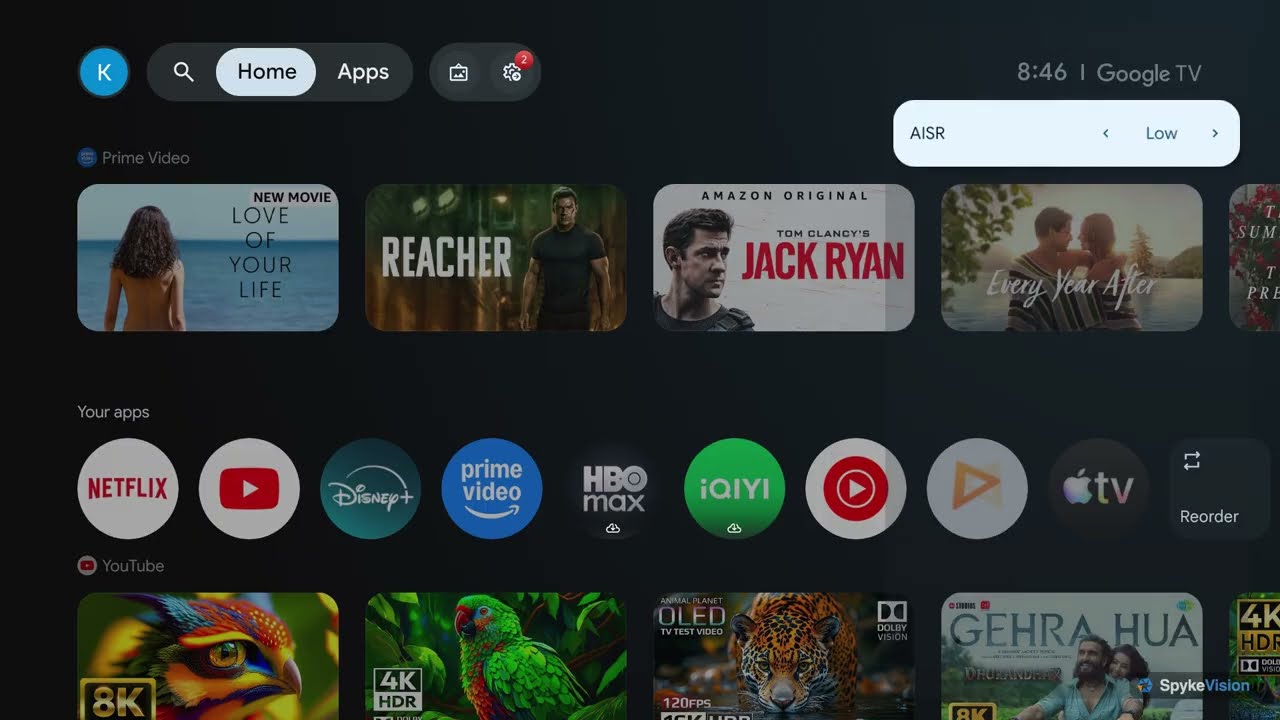

Update: the new firmware 0.6.238 added a menu item for adjusting the color shift of DBLE (Dynamic Black Level Enhancement): Dynamic black level correction, with a single Correction factor slider. It only shows up when DBLE is on. The Titan Noir Max has the same control.
Anti-RBE
Anti-RBE is a faster cycle of the displayed colours: the more often the colours alternate, the harder it is for the eye to see them separately, and the weaker the rainbows on high-contrast edges. The chart shows colour changes per 1/60 s, and the colour-wheel equivalent lets you compare it with other projectors. Here XGIMI’s two controllers already make a clear difference: even with anti-RBE off, the cycle is doubled to 8x. For comparison, the Aetherion only gets there with anti-RBE on.
Why does the number of flashes matter so much? A DLP chip can’t show red, green and blue at the same time. It shows them one after another, fast enough for the eye to blend them into a single colour. While your gaze stays still, everything looks fine. But when your gaze moves across a bright edge, or the edge moves on screen, each colour lands in a slightly different place, and a white object picks up coloured fringes. The shorter each colour stays on screen, the closer together the colours land and the less rainbow you see.
The colour-wheel equivalent comes from lamp DLP projectors, which had a spinning wheel with colour segments. A 4x wheel shows red, green and blue four times each per 1/60 s, which makes 12 colour changes. Lasers have no wheel, but the count works the same way.
With anti-RBE on, the AURA 3 Max reaches 16x. That’s the most effective anti-RBE I’ve seen so far, and it also noticeably reduces rolling buffer artifacts. It works in Vivid too, where the colour sequence is RGBCY (with cyan and yellow segments), and at 1080p/240 with Super Frame and VRR off. At 4K/24, 4K/60, 4K/120 and 1080p/120 it works as well, VRR included.
Vivid shows up on the chart at 21.3x, more than Standard with anti-RBE, and that number needs explaining. Vivid uses five colours instead of three: on top of red, green and blue it adds cyan and yellow segments, which bring extra brightness. With anti-RBE on, red, green and blue are shown twice per cycle, while cyan and yellow appear once each. That gives 64 colour changes per 1/60 s, and the wheel equivalent counts all of them. Red, green and blue on their own still repeat 16 times, as in Standard, so Vivid can look even slightly better than Standard with anti-RBE. The same goes for anti-RBE off: Vivid’s 13.3x against Standard’s 8x comes from the extra cyan and yellow, not from faster primaries.
The colour cycle runs freely, independent of the input: it’s the same at 24, 60 and 120 Hz. There’s one exception. At 1080p/240 with Super Frame on (XPR shift off), the cycle slows down to about 6x and anti-RBE stops working. That’s the only mode where it happens. On top of that, each frame gets only 1.5 colour cycles, so rainbows are even more visible than the numbers suggest.
3D is a different story. Here anti-RBE adds almost nothing: only green speeds up, and the effect is very modest. The mode itself gives only a 4x sequence, and about 5x with anti-RBE on.
Whether any of this matters depends on your eyes. Some people never notice rainbows, others see them on every bright subtitle. If you’re in the first group, the base 8x is already a good result, and you can leave the setting alone. If you’re in the second, keep anti-RBE on in every 2D mode, skip Super Frame at 240 Hz, and expect 3D to show more rainbows than 2D.
Update, October 18: on the newer pre-release firmware (0.6.238) the anti-RBE option is greyed out as XGIMI is still working on it. Everything above was measured on the earlier firmware (0.6.221). I’ll retest as soon as the mode is back.
I’m not going to talk about drawbacks yet: the mode is still in development and may change. I hope the 16x makes it into the retail firmware.
Image Enhancers
The shots below weren’t taken with a camera. The projector can capture its own frames after all picture processing but before the light engine, so you’re seeing exactly the signal the DMD receives. The flip side is that nothing introduced by the optical path shows up in them. In practice these are standard MediaTek picture enhancement algorithms: each manufacturer tunes them its own way and decides what to use and what to leave out.
The menu has five enhancers: MaxVivid, Adaptive Luma Control, Local Contrast Control, AI Super Resolution and Black Equalizer. The first four were captured on five frames covering the full range of scene brightness, each one on its own with everything else switched off. De-contour is a separate setting for reducing banding, and I checked it separately on the darkest frame.
MaxVivid tries to make SDR look like HDR. It applies an S-shaped tone curve: shadows and midtones go down, highlights go up, and saturation rises a little on top. On the mid-brightness scene, shadows drop by a few steps depending on the level, while highlights go up. Colour gets more saturated, mostly in the shadows of dark scenes. There’s no sharpening of its own, but fine detail loses some contrast in the compressed parts of the curve. The levels only really differ on dark and mid scenes. On the very bright scene, all three pull the midtones down and look practically the same. The Aetherion has the same algorithm with a single level, called HDR Enhancer, and its curve setting lies between MaxVivid Low and Middle. The usable setting would be an Ultra-low level, but there isn’t one here.
Adaptive Luma Control is an adaptive tone curve that follows the average brightness of the frame. Dark scenes get lifted, bright ones get toned down, so the whole picture is pulled toward the middle. On the very dark scene the midtones rise, and saturation rises with them. On the very bright scene the picture gets darker instead. The levels don’t always go in order. On the bright scene, Strong darkens the picture half as much as Medium, and on the mid scene Strong pushes the shadows down while Medium leaves them alone. Strong also brings up a bit of visible grain in dark scenes. The Aetherion’s AI Contrast works in a similar way, but with its own curve settings.
Local Contrast Control is the most delicate of the four. Average brightness barely moves, and colour doesn’t change at all. Instead, it works on areas of the frame: dark patches next to bright detail get a little darker, and detail on a dark background gets a little lighter. It’s almost invisible in dark scenes and grows with scene brightness. On the very bright scene it’s clearly at work, and there High adds visible halos around strong edges and more grain on flat areas. This is the only enhancer where the levels scale evenly: Medium is 1.5x Low and High is 2.5x Low. The local part of the Aetherion’s AI Contrast on High behaves very much like it.
AI Super Resolution doesn’t touch brightness or colour, only fine detail, and its three levels behave very differently. High boosts fine detail by 16 to 50% depending on the scene, with halos around edges. Middle is barely distinguishable from Off, at most 8% more detail. Low is the surprise: with a 4K source it makes the picture softer than Off, with less fine detail and gentler edges. So Low isn’t a light version of High, it’s a mild softener. The Aetherion has the same feature under the same name, though there even Low sharpens.
De-contour is debanding for smooth gradients. It’s set to Middle by default in almost every picture mode. On my frames even High changed nothing beyond the normal capture noise, so it does no visible harm. I’ll check what it actually does on a dedicated gradient pattern.
Black Equalizer only works in Game mode and only over HDMI, so it isn’t in these captures. It’s the same function as Dark Detail on the Aetherion, which I covered in the Aetherion review.
See for Yourself
Off is always on the left, the selected enhancer on the right. The switch at the top changes the comparison mode.
Bottom line: pick to taste, but here’s my take: Local Contrast Control on Low or Medium is the safest choice: it’s gentle, leaves colour alone and does nothing where it isn’t needed. On High, watch for halos on bright scenes. AI Super Resolution on Middle is harmless, and High only suits those who don’t mind halos on edges. Low with 4K content is better left off, since it softens the picture. Adaptive Luma Control is unpredictable, with levels that don’t follow their names, so I’d leave it off for films. MaxVivid looks punchy at first glance, but it costs you shadow detail on dark scenes and dims the midtones of bright ones, so I don’t recommend it. De-contour can stay at its default Middle: it does no harm, and I saw no reason to change it.
Power Consumption
I measured power with a wall meter on a 100% white field, after at least 30 minutes of warm-up. In standby the AURA 3 Max uses only about 2 W. Right after you plug it in, it pulls 29–30 W for a few seconds, then drops back to the usual 2 W.
The Light Output ladder is smooth in both modes I measured. In Standard it runs from 93.7 W at level 1 to 212 W at level 10, each step adding 10 to 17 W. In Vivid, where cyan and yellow segments are added to the main RGB colours, it starts at 109.3 W and ends at 268 W, with steps of 12 to 26 W. The gap between the two grows toward the top: 15 W at level 1 and 56 W at level 10. The biggest step in Vivid is the last one: from 9 to 10 the draw jumps by 26 W. On the Aetherion the top steps gave less light per watt than the lower ones, and the Vivid ladder here has a similar shape.
Colour temperature matters too. In Standard mode, the Standard colour temperature reads 208–218 W, D65 213–216 W and Movie 206–208 W. The biggest jump is again in Vivid: 259–260 W with Balanced, 252 W with Movie and 249.5 W with D65. Overall, at Light Output 10 Vivid draws 40 to 55 W more than Standard.
High Power mode, with its green-tinted white balance, is there to hit the rated brightness. It draws 247–250 W, but the fans spin up almost to full and the projector gets very loud. Part of that power goes into cooling, by my estimate 10 to 15 W, so the laser itself runs even lower than in Vivid.
Game mode doesn’t touch the laser: at Light Output 10 it draws 212 W with the Standard colour temperature, the same as Standard mode, 213 W with D65 and 206 W with Movie. That’s a welcome difference from the Aetherion, where PC/Game mode caps the laser at level 8.
With anti-RBE on, the draw goes down a little. In Standard it drops from 203–211 W to 198–200 W, about 9 W less, and in Vivid from 252–257 W to 238 W, 13 to 19 W less.
On a white field the Dynamic iris draws a bit more than the fully open f/2.0, in both modes: 216.5 W against 214–215.5 W in Standard and 273 W against 258 W in Vivid. It looks like the projector drives the laser a little harder in Dynamic.
In Standard, from f/2.0 to f/4.0 the iris doesn’t change the draw at all: 213–215.5 W. At f/5.0 it drops to 198 W and at f/7.0 to 192–194 W. With the iris closed that far, the projector turns the laser down on its own, by 16 to 22 W, just like the Aetherion at M7. Vivid does exactly the same: 258–264.5 W from f/2.0 to f/4.0, then 249.5 W at f/5.0 and 242 W at f/7.0. So the power cut is tied to the iris position, not to the picture mode or its colour temperature.
Bottom line: the lowest draw comes from Standard or Game with the Movie or D65 colour temperature and DBLE on: about 206–216 W on bright scenes and far less on dark ones. Each step down saves another 10 to 17 W. Vivid draws 40 to 55 W more, and High Power only makes sense if you’re chasing record brightness numbers.
Gaming, Refresh Rates & Motion
All tests were done on pre-release firmware, so some things may change by the first public release. I’ll report on that separately.
What XGIMI Promises
The AURA 3 Max is pitched as the first UST that shows 4K at 120 Hz:
- Refresh rates: up to 120 Hz in 4K and up to 240 Hz in 1080p. 4K/120 is handled by two display controllers running in parallel
- Input lag: as low as 1 ms, depending on resolution and mode
- VRR, AMD FreeSync Premium and ALLM
- Dolby Vision Gaming, plus HDR10+, HDR10 and HLG
- True 24, 25, 30, 50, 60, 120 and 240 fps
- MEMC up to 4K/120 (tested)
- Connectivity: three HDMI ports, 4K/120 on HDMI 2 and 3, eARC on HDMI 2
Frame Rates & Cadence
Let’s start with the most important part: which refresh rates the projector can really put on screen, and whether 4K/120 is the real thing. For that I ran our standard test, the same one as in the Aetherion review.
Here’s how it works. A black field with a grid on top, where the number of cells equals the frame rate: 24 frames is 6x4, 120 frames is 12x10, 240 frames is 16x15, and likewise for the other modes. Each frame lights up exactly one cell with its own number, in a snake pattern, so a full pass through the grid takes exactly one second. At the bottom there’s a strip where a marker advances one position per frame. Then you need a camera on a tripod with a one-second exposure: every cell in the shot should be lit, and every number should be legible. A missing number means a dropped frame. A cell brighter than its neighbours means a frame shown twice.
The result: the projector passes almost perfectly. The built-in player plays everything up to 60 fps in both 1080p and 4K, and 100 and 120 fps in 1080p only. In 4K the projector’s video decoder tops out at 60 fps, both in the built-in player and in VLC, so 4K at 100 and 120 fps needs an HDMI 2.1 source.
The one real catch is 48 fps: with MEMC off the projector puts it out at 120 Hz, where frames can’t be repeated evenly, and you get 3:2 pulldown. In Real Cinema it switches to 96 Hz and shows every frame exactly twice, so it’s clean. 47.952 fps doesn’t land exactly: Real Cinema runs it at 96.000 Hz, so now and then one frame is shown an extra time, about once every 10 seconds. 119.88 fps at 120.000 Hz gives the same slight hitch about once every 8 seconds. Both are very rare in practice, and I won’t count them as minuses.
1080p at 240 Hz
This mode deserves a closer look, because there are two catches. The first: the result depends on the Super Frame setting. With SF off (the XPR shift running), only 120 Hz reaches the screen, so every other frame is dropped, because the shift tops out at 480 Hz. With SF on (the XPR shift off), all 240 frames are shown.
The second catch. At 240 Hz the projector for some reason drops the colour cycle from the usual 8x to 6x, so each frame gets only 1.5 colour cycles. The cycle doesn’t fit a whole number of times into a frame, so neighbouring frames get a different mix of colours: fast objects pick up tints, and rainbows are more visible than the cycle rate alone would suggest. I think this is a temporary issue of the early firmware, and in theory the fix is simple: a whole number of cycles per frame, for example 2 or 4. The details are in the Anti-RBE section.
MEMC & Motion
MEMC (Motion Estimation, Motion Compensation) is MediaTek’s interpolator, which creates new frames between the original ones to make motion smoother. I decided to look at it in more detail in this review, because for the first time it can interpolate up to 120 Hz. The menu has five levels: Off, Real Cinema, Low, Middle and High. I tested them on the built-in player at 24 fps with our motion test, where the picture moves 40 px per frame and the projector outputs 120 Hz, so each original frame has room for four new ones.
- Off and Real Cinema add nothing: each frame is simply shown five times. Real Cinema differs from Off only in the refresh rate it picks for 48 fps content (see the table above)
- Low generates new frames, but they land almost on top of the originals, so the effect is barely visible
- Middle goes halfway
- High gives true 120 fps motion, five even 8 px steps
At 120 Hz input MEMC does nothing: there’s no room left for extra frames.
What does this mean when you watch? When you follow a moving object, your gaze moves smoothly, while each frame stays put on screen. The longer a frame is held, the more it smears across your retina. To show this, I made an eye-tracking emulation from the measured frame positions of our test as filmed by a camera: the frames are averaged the way an eye following the boat would see them.

In motion resolution at 24 fps, that comes to about 120 lines with Off and Real Cinema, 180 with Low, 340 with Middle and 600 lines with High. The low starting figure is typical of many displays: film holds each frame on screen for 41.7 ms, two and a half times longer than 60 Hz video, so every display without black frame insertion lands around there with 24 fps content. At 60 fps with MEMC off the picture gives the usual 300 lines, like an LCD or OLED TV without black frame insertion, and High doubles that to 600 by drawing a new frame between every two. At 60 fps even Low and Middle help noticeably: about 370 and 500 lines. Native 120 fps content needs no MEMC at all: every frame is shown once, and you get the same 600 lines that High creates from 24 or 60 fps, without any interpolation artifacts. At 240 Hz with Super Frame each frame stays on screen for only 4.2 ms, which would be about 1200 lines, so motion resolution simply reaches the native 1080p of the chip. Real Cinema behaves the same as Off at every frame rate.
These line counts are given for the standard speed used in display reviews, 6.5 px per frame at 60 Hz. That doesn’t mean refresh rates above 240 Hz are pointless. In games with sharp, fast camera turns, 360 or 480 Hz would keep even more detail in motion, because the movement per frame is much larger. But here the limit is the colour cycle, not the refresh rate. Right now neither the Aetherion nor the AURA 3 Max handles 240 Hz cleanly. The Aetherion either runs 8x with heavy posterization or drops to 4x with strong rainbows. The AURA 3 Max runs an uneven 1.5 colour cycles per frame at 6x, which also means strong rainbows. I’ve reported both issues to the manufacturers and will update this once new firmware is out.
In short: interpolation doesn’t come for free. On fast motion you get halos around the edges of moving objects, the funnels and smoke double up, the waves break apart and the lettering wobbles. On slow motion the picture stays almost clean. I’d really like to see XGIMI’s own interpolation on the X-Vision chip, especially since the hardware is already there.
As the default I’d pick Real Cinema over Off: it’s the same picture, but 48 fps content plays evenly. If you like smooth motion, High makes the biggest difference, at the cost of artifacts in fast scenes. Low does almost nothing, and Middle sits halfway.
Gaming
What the projector tells the source over HDMI (its EDID) depends on the menu settings:
- By default it advertises itself as HDMI 2.0: up to 4K/60 and 1080p/240
- 4K/120 appears only once you switch on HDMI 2.1 in the menu (FRL, up to 48 Gbps)
- VRR (40–240 Hz) is advertised only with both Super Frame and VRR on. VRR can only be enabled together with Super Frame
- ALLM is advertised once you turn it on in the menu
- AMD FreeSync isn’t advertised in any mode, even with VRR on: the EDID has no FreeSync block, only standard HDMI VRR. Most likely it’s down to the early firmware
- HDR: HDR10, HDR10+ and Dolby Vision
The built-in player tops out at 1080p/120. For 4K/120 and 240 Hz you need an external source.
Colour Resolution over HDMI
With 4:4:4, every pixel gets its own colour. 4:2:2 halves the colour resolution horizontally, and 4:2:0 halves it vertically too. In films you’ll hardly notice, but small coloured text and thin coloured lines on a desktop or in a game’s interface lose their sharpness.
I sent 4K/60 in 4:4:4 from a Mac and checked our QBF chroma test pattern, with close-up photos below. What reaches the screen depends heavily on the game settings, and even on the order you turn them on:
- PC Mode: 4:4:4, the only setting that keeps full colour. It works together with ALLM, but not with VRR
- Normal mode, no game options: 4:2:0
- Game Mode (Low Latency): 4:2:2
- Game Mode + Gaming MJC: back down to 4:2:0
- ALLM: switches the signal to 4:2:0. 4:4:4 stays only in combination with PC Mode
- Super Frame + VRR first, then Game Mode: 4:2:0, and Game Mode can no longer be turned on
- Game Mode first, then Super Frame + VRR: stays at 4:2:2

PC Mode with 4:4:4 has a price too: all image enhancers are switched off and greyed out in the menu. At 4:2:2 and 4:2:0 they stay available. On top of that, PC Mode is forced off when you turn on VRR.
What to pick: for a PC and desktop work, PC Mode, no question. For a console or a gaming PC with VRR, stick to a strict order: turn on Game Mode first, then Super Frame, and only then VRR, and leave ALLM off. That keeps the signal at 4:2:2, so you get more colour resolution than with any other order. Either way it’s a choice: 4:2:2 with VRR and enhancers, or 4:4:4 without VRR and enhancers.
Game Mode & Gaming MJC
Game Mode has two latency options, Standard and Boost. Boost lowers input lag further by switching off keystone correction and locking the image size and position. Turning Game Mode on switches regular MEMC off.
Gaming MJC is a separate motion smoothing for games, with a 0–10 slider. It’s only available in Game Mode over HDMI, and not together with VRR, PC Mode or ALLM. According to the menu it only works up to 120 Hz. By all appearances it’s the same MEMC covered above, with finer adjustment. Its cost is clear right away: colour drops to 4:2:0, as in the photo above.
On the plus side, Game Mode itself doesn’t dim the laser: power draw is the same as in Standard mode (see Power Consumption).
Gaming Impressions
Despite the caveats and limits described above, this is the best projector for gaming I’ve had on test so far. Even better than the flagship Titan Noir Max, whose game mode still needs work and has its own quirks. Sharp, high-quality optics, the best of any UST in our tests, high ADL contrast, an 8x colour cycle even without anti-RBE, and 4K/120 support add up to very smooth, detailed motion with fast response and no smeared frames. Playing on it is a pleasure, and the two controllers really show what they can do here.
Bottom line: for films, turn on Real Cinema. For games, the order of settings matters a lot: PC Mode for a computer, and for a console Game Mode first, then Super Frame and VRR, with ALLM off. Otherwise colour drops to 4:2:0. From XGIMI’s list, the 240 Hz mode still needs work, and AMD FreeSync isn’t available in the current firmware yet.
3D
3D brightness is good for a UST, but at F2.0 it lacks contrast. Crosstalk is low. Rolling buffer artifacts and rainbows, though, are hard to miss, and rolling buffer is more visible in 3D than in any other mode.
What XGIMI promises:
- Formats: Side-by-Side, Top-Bottom and Frame Packing
- Glasses: active DLP-Link, two pairs in the box, synced through the screen, with no separate emitter
- Anti-RBE in 2D and 3D: a marked reduction of rainbows in both modes
Sync with the glasses
3D runs as a frame sequence: 120 frames per second, 60 for each eye. I checked the glasses sync pulses by filming the screen with a fast shutter: the pulse arrives reliably, one per frame for each eye, with no dropouts. Between the frames for the two eyes the projector blanks the picture for about 2.1 ms, roughly a quarter of the time, so 3D is noticeably dimmer than 2D.
Rolling buffer stays in 3D: the DMD doesn’t switch colours across the whole screen at once, but in a band moving from top to bottom, so at any moment the top and the bottom of the frame can be in different colour fields.
Rainbows in 3D
This is where things are more modest than in 2D. Colours change half as often in 3D: each eye frame gets two G→B→R cycles, a 4x sequence against 8x in 2D. Anti-RBE adds almost nothing in 3D: it only rearranges the segments, and the rate barely rises, to about 5x against 16x in 2D. With a cycle this slow, rolling buffer and rainbows are more visible in 3D than in any other mode.
Bottom line: 3D on the AURA 3 Max is bright for a UST, glasses sync is stable and crosstalk is low. But if you’re sensitive to rainbows, 3D is the mode you’ll like least: the colour cycle is at its slowest here, and anti-RBE barely helps.
Coming Next
Brightness and contrast measurements, DBLE (Dynamic Black Level Enhancement), the iris, colour and input lag.
Comments
No comments yet — be the first.